Step 01 • Essential
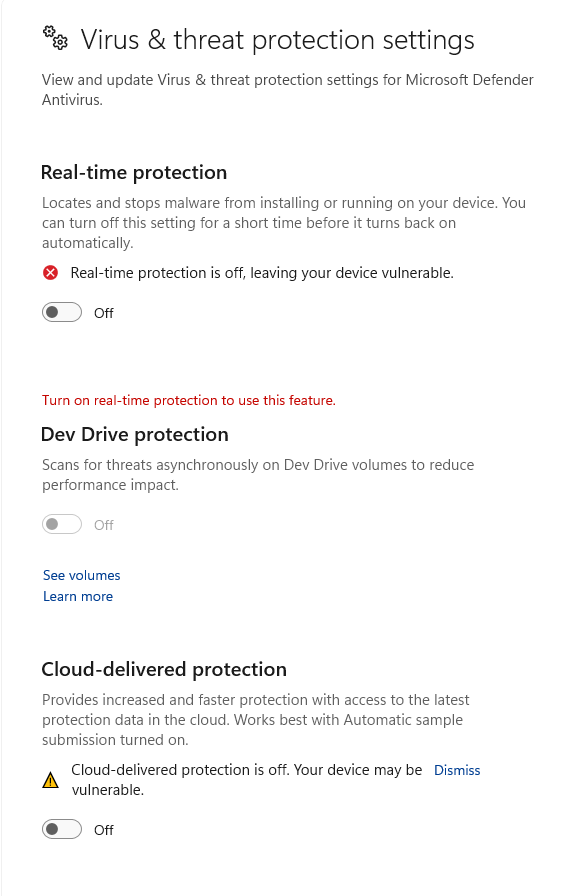
Virus & Threat Protection Settings
Windows Security > Virus & threat protection > Manage settings
- Real-time protection OFF
- Cloud-delivered protection OFF
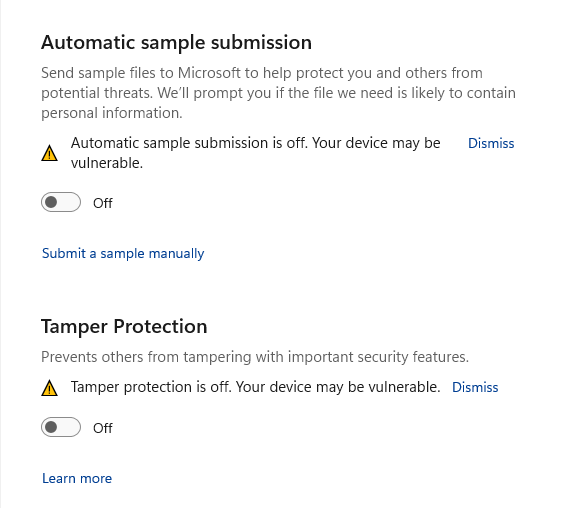
- Automatic sample submission OFF
- Tamper Protection OFF
Disabling these options prevents Windows Defender from scanning memory injections and deleting loader temporary binaries.
Step 02 • Kernel Requirement
Core Isolation & Memory Integrity
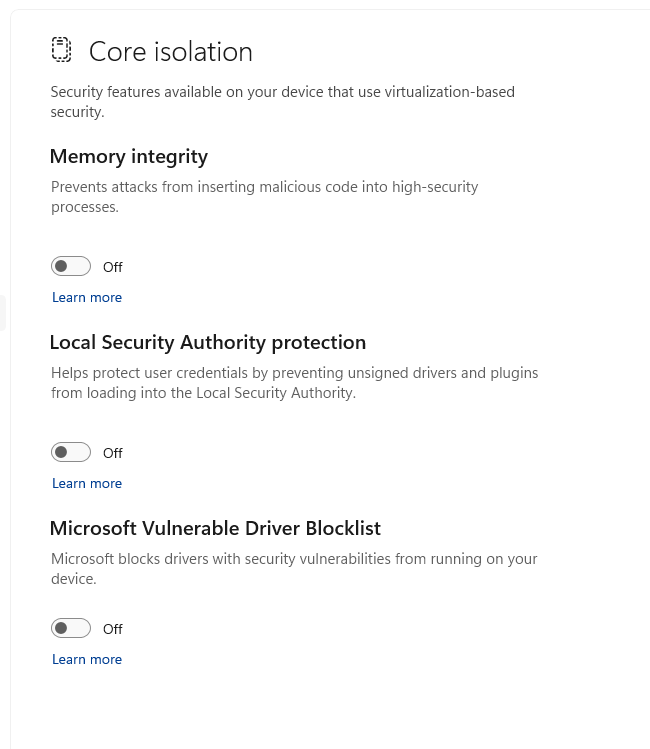
Windows Security > Device Security > Core isolation details
- Memory Integrity (Restart required) OFF
- Local Security Authority (LSA) protection OFF
- Microsoft Vulnerable Driver Blocklist OFF
Important: After turning off Memory Integrity, you MUST restart your PC for the virtualization-based security changes to take effect.
Step 03 • SmartScreen
App & Browser Control
Windows Security > App & browser control
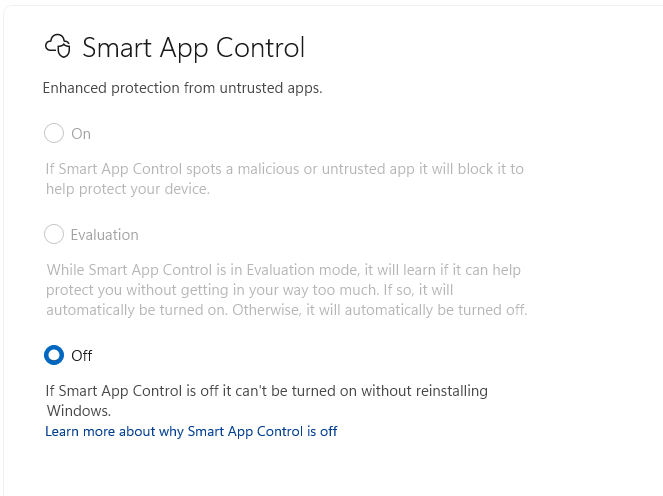
- Smart App Control OFF
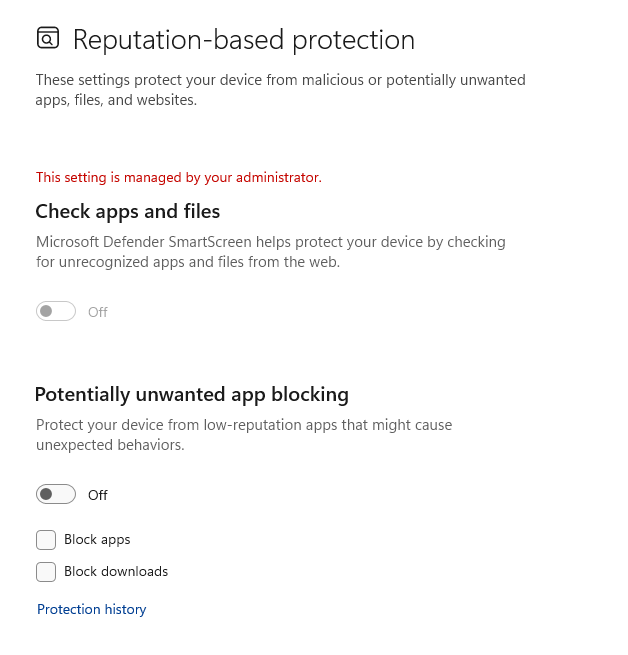
- Check apps and files (SmartScreen) OFF
- Reputation-based protection (PUA) OFF
Smart App Control blocks unsigned custom executables. Turning this off allows EclipseLoader.exe to launch cleanly.
Step 04 • File Access
Ransomware Protection
Windows Security > Virus & threat protection > Manage ransomware
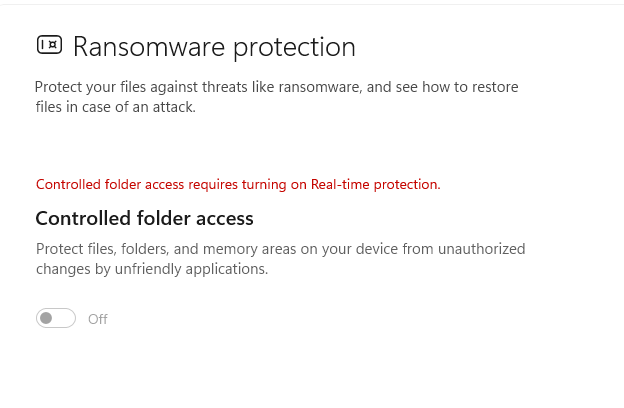
- Controlled folder access OFF
Controlled folder access prevents apps from modifying game folders and config files. Ensure it is switched OFF.
Step 05 • Memory Integrity
Exploit Protection Settings
Windows Security > App & browser control > Exploit protection
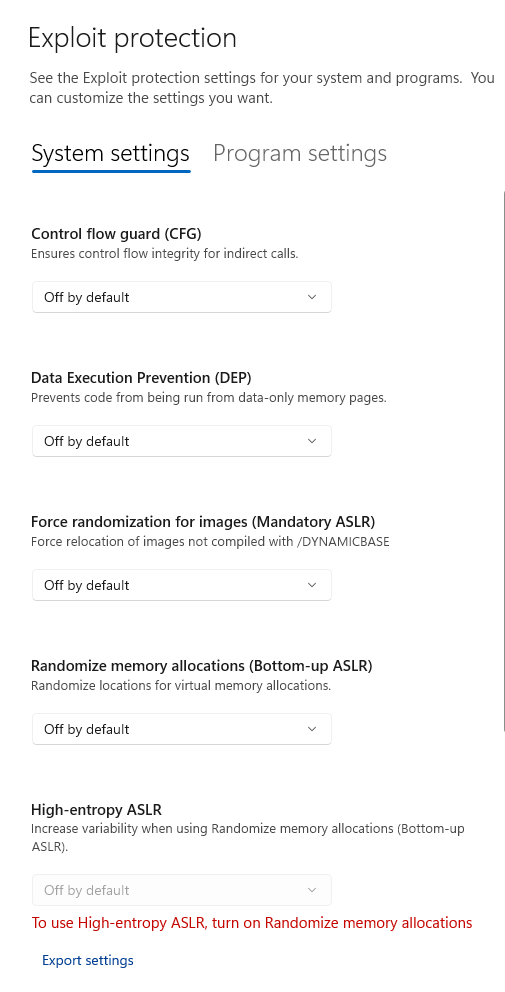
- Control flow guard (CFG) OFF by default
- Data Execution Prevention (DEP) OFF by default
- Mandatory & Bottom-up ASLR OFF by default
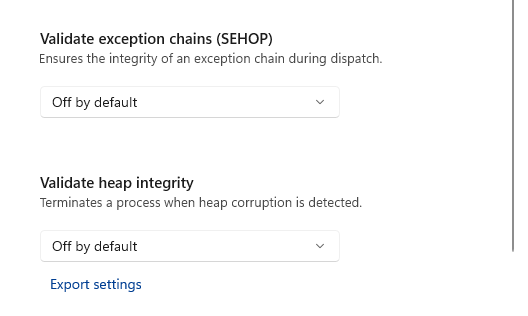
- SEHOP & Heap Integrity OFF by default
Under the System settings tab, change every protection option to Off by default to allow memory mapping and hook interception.
Step 06 • Antivirus Removal
Third-Party Antivirus Software
Disable or Uninstall any third-party antivirus software (e.g., Avast, Kaspersky, Norton, Bitdefender, McAfee). Uninstalling is highly recommended to prevent any silent background memory blocking.